Saved Edu-Jobs
Learner
/
Saved Edu-Jobs
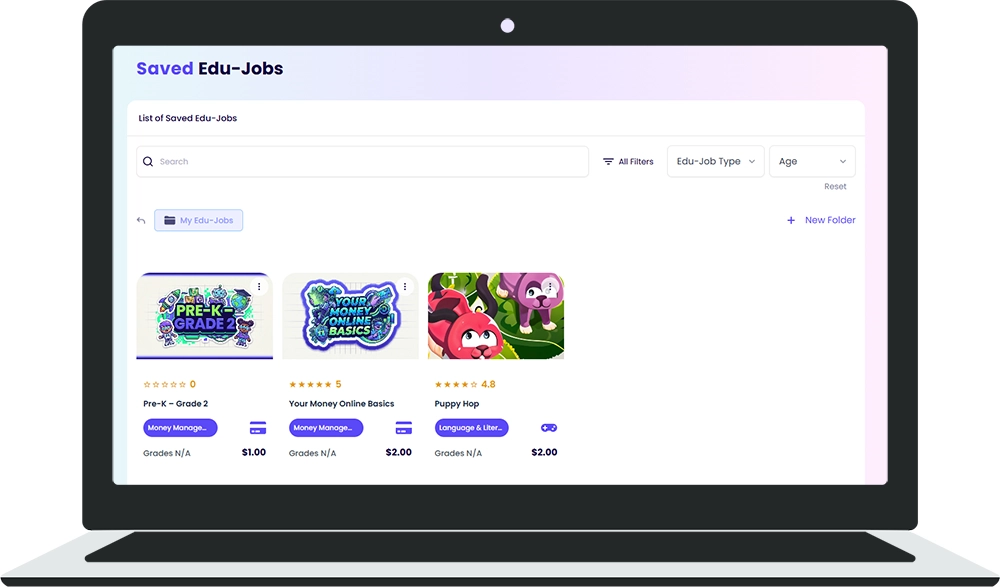
Saved Edu-Jobs is your personal bookmark collection. Save Edu-Jobs you want to do later, organize them into folders, and access them anytime.
What are Saved Edu-Jobs?
When you find an Edu-Job you're interested in but aren't ready to start, you can save it. Saved Edu-Jobs are like bookmarks so you can come back to them later.
How to Save an Edu-Job
- Browse the Edu-Jobs Center or the full Edu-Jobs list.
- Tap the bookmark icon on any Edu-Job card.
- The Edu-Job is added to your Saved Edu-Jobs page.
Organizing with Folders
You can create folders to organize your saved Edu-Jobs:
- Go to Saved Edu-Jobs from the sidebar.
- Tap + New Folder.
- Give your folder a name (for example, "Math Practice" or "Weekend Tasks").
- Drag or move saved Edu-Jobs into your folders.
Searching Saved Edu-Jobs
Use the search bar at the top of the Saved Edu-Jobs page to quickly find a specific item by name.
Removing a Saved Edu-Job
To remove an Edu-Job from your saved list, tap the bookmark icon again to un-save it. This does not affect the Edu-Job itself; it just removes it from your saved list.

%201.avif)

lifehub
Ready to Chat about Life Hub?
Whether you're a parent, teacher, or partner—there’s a path for you.


.svg)

.svg)


.svg)
.svg)

.svg)