My Earnings & Debit Card
Learner
/
My Debit Card
Your Visa debit card is where your Life Hub earnings appear. This page shows your balance, earnings, spending, and card management options.
Your Visa debit card is where your Life Hub earnings appear. This page shows your balance, earnings, spending, and card management options.
Page Overview
The "My Earnings" page is your financial hub. It displays:
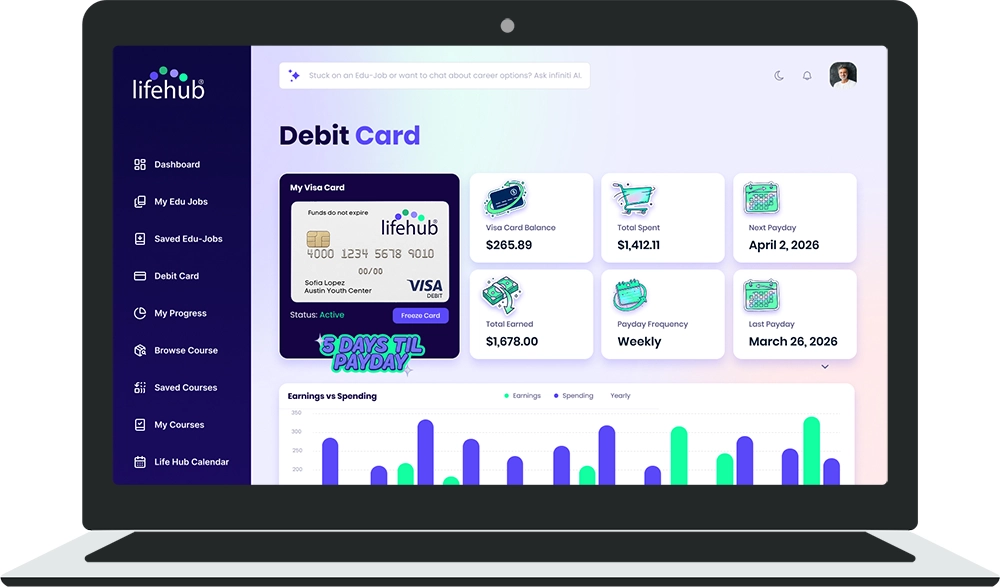
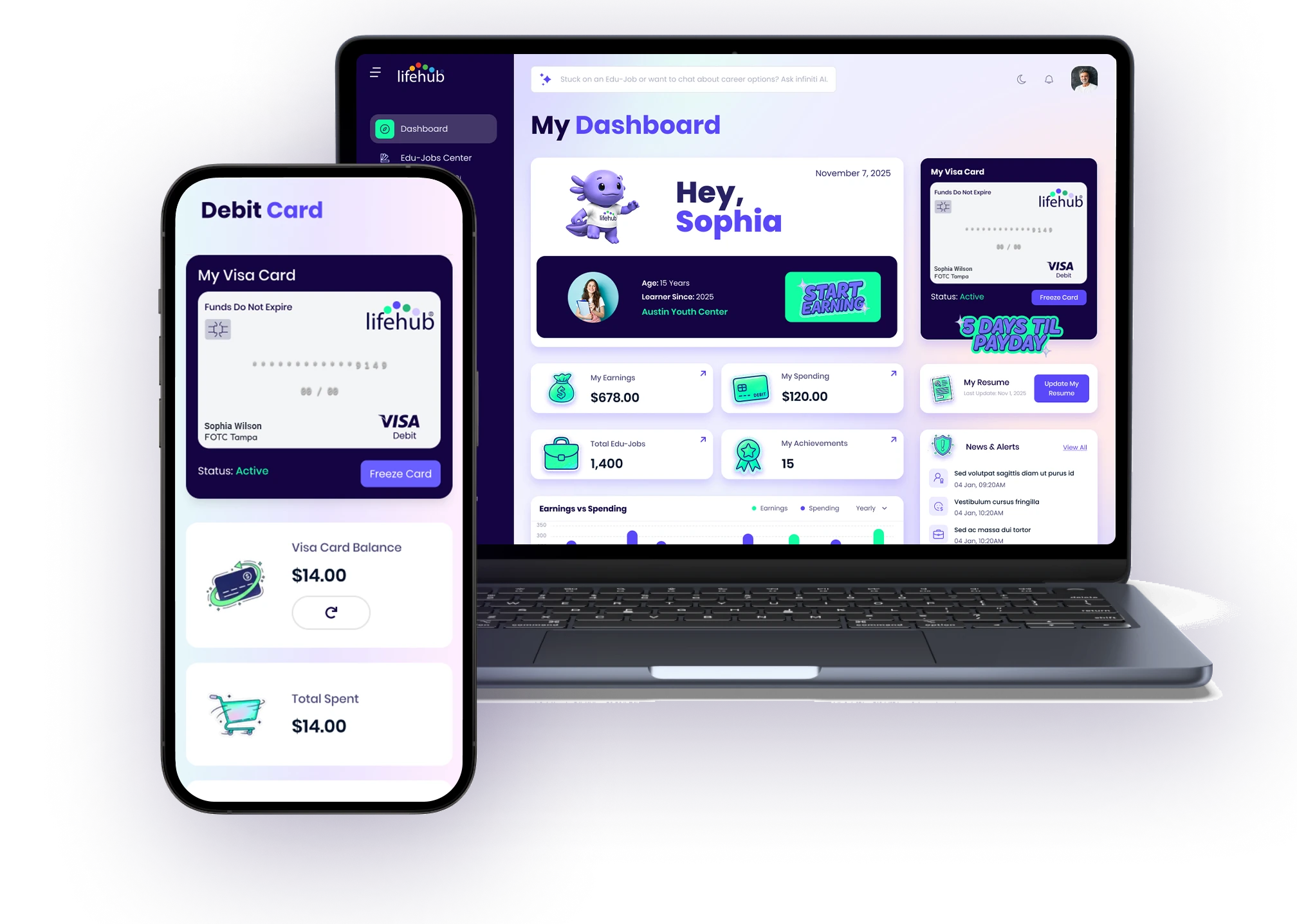
🔹 Your prepaid Visa card with current status
🔹 Account balance and earnings history
🔹 Spending information
🔹 Payday details
🔹 Card management controls
Everything you need to understand and manage your money is here.
Debit Card Section
At the top of the page is your card section with a blue and purple gradient background.
My Visa Card Visual
The card displays:
🔹 Life Hub branding - Your card is branded with Life Hub design
🔹 Visa Debit logo - Shows this is a real Visa debit card you can use anywhere
🔹 Masked card number - Your card number with most digits hidden for security (e.g., XXXX XXXX XXXX 1234)
🔹 "Funds Do Not Expire" label - Important: Money on your card stays available indefinitely
🔹 Expiration date - When your physical card expires
Card Status
Below or on the card:
🔹 Active - Your card is working and you can spend from it
🔹 Inactive - Your card is not currently functional (contact support if this happens)
Freeze Card Button
🔹 "Freeze Card" button - Click to temporarily lock your card if lost or compromised
🔹 When frozen, you cannot spend from the card
🔹 You can unfreeze it anytime from this page
🔹 Use this if your card is missing or you think it's been compromised
Financial Statistics
The page displays 6 key stat cards showing your financial summary:
1. Visa Card Balance
🔹 Shows: Your current available balance on the card
🔹 Icon: Refresh icon to update the balance in real-time
🔹 Click refresh: Updates immediately from the card processor
2. Total Spent
🔹 Shows: Total amount you've spent from your Visa card since joining
🔹 Tells you: How much of your earnings you've used
3. Next Payday
🔹 Shows: The upcoming date when your earnings will load onto your card
🔹 Displays: Your next scheduled payday date or "N/A" if none is scheduled
4. Total Earned
🔹 Shows: Total amount you've earned across all completed Edu-Jobs
🔹 Reflects: All approved and paid Edu-Jobs
🔹 Growth: This number increases every payday
5. Payday Frequency
🔹 Shows: How often you get paid
🔹 Examples: Biweekly, Monthly, Weekly
🔹 Set by: Your organization or school
🔹 Note: You can't change this, but your organization determines the schedule
6. Last Payday
🔹 Shows: When your most recent payment loaded onto your card
🔹 Displays: Your last payday date or "N/A" if you haven't received a payday yet
How Earnings Work
Your money goes through this process:
1. Complete an Edu-Job
🔹 You start and finish an Edu-Job
🔹 You submit it for review
2. Wait for Approval
🔹 An instructor or admin reviews your work
🔹 You can check "Submitted for Review" count in My Edu-Jobs to track pending approvals
3. Get Approved
🔹 Your work passes review
🔹 Status changes to "Approved" in My Edu-Jobs
🔹 Your earnings are credited to your account
4. Money Loads on Payday
🔹 On the next scheduled payday, approved earnings load onto your Visa card
🔹 The exact amount transfers from our system to your card
🔹 Your balance updates automatically
🔹 The payday appears under "Last Payday" on this page
5. Spend Anytime
🔹 Once on your card, the money is yours to use
🔹 Spend it at stores, online, or withdraw from ATMs
🔹 Your balance updates as you spend
Card Information
Your Visa Card is Real
🔹 It's a prepaid Visa debit card, not a gift card or temporary card
🔹 You can use it anywhere Visa is accepted (stores, restaurants, online)
🔹 You can withdraw cash from ATMs
🔹 It has a real card number and security features
🔹 The card is powered by Dash, a trusted payments provider
Funds Do Not Expire
🔹 Unlike many prepaid cards, your Life Hub money never expires
🔹 If you don't spend it this month, it's still there next month
🔹 You own the money once it's approved and loaded
🔹 There's no "use it or lose it" deadline
Card Limits and Protections
🔹 The card works like a regular debit card with standard daily spending and ATM withdrawal limits
🔹 Your card is protected by Visa's fraud protection
🔹 If someone uses your card fraudulently, Visa covers it
🔹 Freeze your card immediately if lost or stolen
Managing Your Card
Regular Balance Checks
🔹 Come to "My Earnings" page anytime
🔹 Click the refresh icon on the "Visa Card Balance" card
🔹 Your current balance updates immediately
🔹 Check spending from "Total Spent" stat
If Your Card is Lost or Stolen
🔹 Immediately click "Freeze Card" on this page
🔹 Contact Technical Support through Messages
🔹 Request a replacement card
🔹 A new card will be mailed to you
🔹 Any funds on the frozen card transfer to your new card
Tracking Spending
🔹 Use the "Total Spent" stat to see overall spending
🔹 Click to view detailed transaction history
🔹 See where your money is going month by month
Planning for Payday
🔹 Check "Next Payday" to know when money arrives
🔹 Understand your "Payday Frequency" so you can plan spending
🔹 View "Last Payday" to calculate when the next one is
Tips
💡 Check your balance regularly to track progress
💡 Understand your payday schedule so you don't run out of money unexpectedly
💡 Complete more Edu-Jobs before payday to have a bigger balance
💡 Use the card like any debit card - there are no special restrictions
💡 Set up a budget by looking at your monthly earnings vs spending trends
💡 Remember that funds never expire, so you can save over time
💡 Freeze your card immediately if lost instead of waiting for a replacement

%201.avif)

Ready to Chat about Life Hub?
Whether you're a parent, teacher, or partner—there’s a path for you.

.svg)

.svg)


.svg)
.svg)

.svg)