My Calendar
Learner
/
Calendar
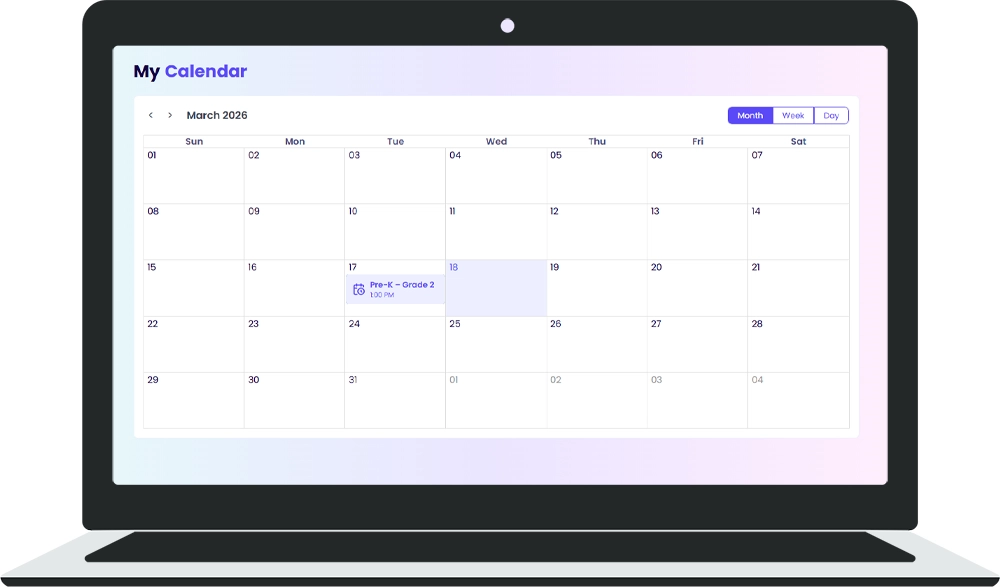
My Calendar helps you keep track of your scheduled edu-jobs and important deadlines. You can view your schedule by month, week, or day to stay organized and plan when you'll work on your edu-jobs.
My Calendar helps you keep track of your scheduled edu-jobs and important deadlines. You can view your schedule by month, week, or day to stay organized and plan when you'll work on your edu-jobs.
Accessing Your Calendar
Click the "Calendar" option in the main navigation to open your calendar view.
Calendar View Options
You'll see three view buttons in the top-right corner of the calendar:
🔹 Month - See an overview of the entire month
🔹 Week - View a specific week with hour-by-hour time slots
🔹 Day - Focus on a single day with detailed hourly breakdown
Navigation
Use the navigation controls at the top of the calendar:
🔹 Previous/Next Arrows - Click the < or > arrows to move between months, weeks, or days depending on your current view
🔹 Month/Year Display - The center shows the current month and year (for example, "March 2026")
Monthly View
The monthly view displays a standard calendar grid with the days of the week (Sunday through Saturday).
🔹 Today's Date - The current day is highlighted with a light blue background
🔹 Edu-Job Indicators - Scheduled edu-jobs appear on the date they're due or scheduled
🔹 Easy Navigation - Scroll through months to see your full schedule at a glance
Weekly View
The weekly view shows a detailed breakdown of one week with hour-by-hour time slots.
🔹 Time Slots - Each hour is listed vertically so you can see exactly when your edu-jobs are scheduled
🔹 Selected Week - The week is labeled at the top with the date range
🔹 Job Details - Your scheduled edu-jobs appear in their designated time slots
Day View
The day view gives you the most detailed look at a single day.
🔹 Hour-by-Hour Breakdown - Every hour is displayed with any edu-jobs scheduled for that time
🔹 Full Day Overview - You can see exactly what you need to complete today
🔹 Quick Planning - Perfect for planning your work session
Scheduled Edu-Jobs on Your Calendar
When you accept an edu-job that has a specific deadline or scheduling requirement, it appears on your calendar automatically.
🔹 Scheduled Jobs - Only edu-jobs with assigned deadlines or specific time windows show up
🔹 Visible Across Views - You'll see them in month, week, and day views
🔹 Easy to Spot - Job titles and details appear directly on the calendar dates
Tips for Staying on Track
💡 Check your calendar regularly to spot upcoming deadlines
💡 Use the month view to plan your week ahead
💡 Switch to week or day view when you're ready to work on specific edu-jobs
💡 Take advantage of the view options to find the schedule layout that works best for you
💡 Mark your calendar for payday dates and monthly challenge deadlines so you don't miss them

%201.jpg)

Ready to Chat about Life Hub?
Whether you're a parent, teacher, or partner—there’s a path for you.


.svg)

.svg)


.svg)
.svg)

.svg)